Follow these steps to create a new e-mail profile in Outlook 2007 and in Outlook 2003:
1.Click Start, and then click Run.
2.Copy and paste (or type) the following command in the Open box and then press ENTER: control panel
3.If you are in Classic View, double-click Mail. The Mail Setup dialog box opens. Go to step 5.
4.If you are in Category View, under Control Panel, click Switch to Classic View, and then double-click Mail. The Mail Setup dialog box opens.
5.In the Mail Setup dialog box, click Show Profiles.
6.On the General tab, under When starting Microsoft Office Outlook, use this profile, click Prompt for a profile to be used, and then click Add.
7.In the Profile Name box, type the name that you want to use for the new e-mail profile, and then click OK.
8.In the E-mail Accounts dialog box, click Add a new e-mail account, and then click Next.
9.Click the appropriate server type for your new e-mail account, and then click Next.
10.Type your account information in the required boxes, and then click Next.
Click Finish, and then click OK.
bacteria comment: usually user need more then one outlook profile such as PA or secretary.
Memaparkan catatan dengan label outlook. Papar semua catatan
Memaparkan catatan dengan label outlook. Papar semua catatan
Jumaat, 4 Disember 2009

Selasa, 25 Ogos 2009
"Outlook blocked access to the following potentially unsafe attachments" message in Outlook
If you have a problem like this, see below steps.

Follow these steps to modify the registry and change Outlook's attachment security behavior.
1.Exit Outlook if it is running.
2.Click Start, and then click Run. Copy and paste (or type) the following command in the Open box, and then press ENTER:
regedit
3.Verify that the following registry key for your version of Outlook exists.
Microsoft Office Outlook 2007
HKEY_CURRENT_USER\Software\Microsoft\Office\12.0\Outlook\Security
Microsoft Office Outlook 2003
HKEY_CURRENT_USER\Software\Microsoft\Office\11.0\Outlook\Security
Microsoft Outlook 2002
HKEY_CURRENT_USER\Software\Microsoft\Office\10.0\Outlook\Security
Microsoft Outlook 2000
HKEY_CURRENT_USER\Software\Microsoft\Office\9.0\Outlook\Security
If the registry key exists, go to step 5.
If the registry key does not exist, follow these steps to create it:
A.Locate, and then click the following registry key:
HKEY_CURRENT_USER\Software\Microsoft
B.Under Edit, click New, and then click Key.
C.Type Office, and then press ENTER.
D.Under Edit, click New, and then click Key.
For Outlook 2007, type 12.0, and then press ENTER.
For Outlook 2003, type 11.0, and then press ENTER.
For Outlook 2002, type 10.0, and then press ENTER.
For Outlook 2000, type 9.0, and then press ENTER.
E.Under Edit, click New, and then click Key.
F.Type Outlook, and then press ENTER.
G.Under Edit, click New, and then click Key.
H.Type Security, and then press ENTER.
4.Under Edit, click New, and then click String Value.
5.Copy and paste (or type) the following name for the new value:
Level1Remove
6.Press ENTER.
7.Right-click the new string value name, and then click Modify.
8.Type the file name extension of the file type that you want to open in Outlook. For example:
.exe
To specify multiple file types, use the following format:
.exe;.com
9.Click OK.
10.Exit Registry Editor.
11.Restart your computer.
When you start Outlook, you can open the file types that you specified in the registry.

source: http://support.microsoft.com/kb/829982
bacteria comment: You can insert any extension as long its not a virus.. :D
Isnin, 19 Januari 2009
How to move outlook .ost file to other drive
in certain reason, some user want to save their outlook .ost (offline) to other folder or drive. in default setting, these file is store in C:\Documents and Settings\user\Local Settings\Application Data\Microsoft\Outlook\outlook.ost and its quit long path and hidden too.
for some software like Deep Freeze (will elibrate later), these file need to transfer in other partition (thawed drive) to make changes. if not it will be feeze out.
the step is like below:
1. First you need to close your Outlook.
2. Click Start, and then click Control Panel.
3. Double-click Mail, and then click E-mail Accounts.
4. Click View or change existing e-mail accounts, and then click Next.
5. Select the Microsoft Exchange Server account, and then click Change.
6. Clear the Use Cached Exchange Mode check box.
7. Click More Settings.
8. Click the Advanced tab.
9. Click Offline Folder File Settings.
10. Click Disable Offline Use, and then click Yes in the dialog box that appears.
11. Click Offline Folder File Settings.
12. Click Browse, go to the location where you want to save your .ost file, and then click Open.
13. Click OK.
14. Select the Use Cached Exchange Mode check box.
15. Click Next, and then click Finish.
bacteria comment: im trying deep freeze now, and seem it work for transferring data to thawed drive..
Sabtu, 11 Oktober 2008
Ms Outlook hangup : Starting Microsoft Office Word 2003 as your e-mail editor
Bacteria mengalami masalah apabila hendak menghantar email dan popup ini akan keluar dan Outlook hang. terpaksa menutup aplikasi secara force pada task manager.

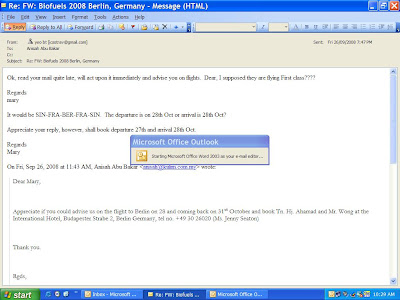
apa yang perlu dilakukan? terdapat option didalam MS outlook untuk meng-disablekan email editor ini. cara-caranya:
1. buka Ms Outlook
2. Pergi tab Tools dan klik Options
3. dan seterusnya ke Mail Format
4. Un-tick "use microsoft Office Word 2003 to edit e-mail messages" dan apply
5. tutup dan buka balik MS Outlook anda

terdapat beberapa features tidak dapat diaktifkan seperti spelling and grammar. bagi mereka yang menginginkan features ini terutama kepada user yang sering menggunakan bahasa inggeris sebagai perantara, bacteria menasihati supaya un-install dan install semula MS office anda.
komen bacteria: Cara yang sama untuk mengaktifkan spelling and grammar jika user mengadu tidak mempunyai features ini. tick "use microsoft Office Word 2003 to edit e-mail messages" dan apply. selamat mencuba.
Rabu, 10 September 2008
sinteks: "Microsoft Outlook could not sign or encrypt this message"
Pernah mengalami masalah seperti ini?

mula-mula pening juga bacteria memikirkannya. setelah bertanyakan tukang tilik si tok google, akhirnya berjaya juga menyelaikan masalah user.
sila ikuti solusinya:
1. buka MS Outlook
2. pergi pada tab tools
3. kemudian click option

4. pergi tab security dan untick "Add digital signature to outgoing message". kemudian tekan butang OK

5. kemudian pilih tab mail setup dan tekan butang send/receive

6. pilih group name (biasanya all account) dan tekan butang edit

7. pilih option download offline address book

8. tekan butang address book setting dan pastikan option full detail dipilih. tekan butang OK.

9. tutup MS Outlook dan buka. test send email anda.
komen bacteria: seram tgk error syntac MS outlook
membaiki fail outlook *.pst
seringkali terjadi terutama mesej-mesej yang telah di archivekn (*.pst). hal ini terjadi apabila saiznya hampir ketahap yang maksimum iaitu 2GB bagi Microsoft Outlook 2002 kerana ketika itu masih menggunakan format (ANSI) dan 20GB untuk Microsoft Outlook 2003 yang menggunakan format (UNICODE) yang lebih baik.
tanda-tanda awal masalah ini diketahui apabila user cuba membuka outlook, windows akan menyatakan outlook cuba untuk membaiki folder mailbox. walaubagaimanapun ianya bergantung pada keadaan. popup outlook lazim seperti "Errors have been detected in the file 'file_path'. Quit all mail-enabled applications, and then use the Inbox Repair Tool." menandakan fail *.pst sedang kaput.
Microsoft Outlook sebenarnya menyediakan satu tools untuk membaiki fail *.pst ini iaitu Scanpst.exe yang terletak didalam folder Program files.
berikut adalah cara-caranya:
1. pergi start
2. tekan ikon search
3. di sebelah kiri, sila pilih "all files and folders"
4. taip Scanpst.exe

5. run aplikasi

6. browse fail dan tekan butang start

7. tunggu aplikasi selesai scan sehingga kotak bibawah keluar dan tekan butang repair

8. selesai

jika solusi ini tidak berjaya, anda dinasihati menggunakan aplikasi dari 3rd party yang sememangnya perlu sedikit bayaran.
komen bacteria: berjaya menyelesaikan masalah dan selalu menegur user apabila saiz archive.pst hampir kepada 2GB, perlu membuat fail archive baru. bila user refuse, ugut dia dgn menyatakan fail penting mungkin akan hilang.. :D
Langgan:
Catatan (Atom)